 FLIMKit
Plugins / FLIMKit / Plugins · edit on GitHub
Plugins
A plugin adds something to FLIMKit without changing FLIMKit itself: a Tools menu entry, a button in the ROI panel, a file format, a phasor filter, a fit backend, or a service that starts with the app. FLIMKit's own tools are registered the same way, so turning plugins off entirely also empties the Tools menu.
These add-ons are maintained alongside FLIMKit, each with its own page:
| Add-on | Package | What it adds | Page |
|---|---|---|---|
| FLIMKit bridge | flimkit-bridge |
A local HTTP server that QuPath and Fiji talk to, plus a headless flimkit-bridge command |
FLIMKit Bridge |
| QuPath extension | a jar for QuPath | Images, ROIs, fits and a phasor window inside QuPath | QuPath Bridge |
| Fiji plugin | a jar from the FLIMKit-Bridge update site | The same exchange for Fiji's ROI Manager | Fiji Bridge |
| Z-stack explorer | flimkit-zstack-explorer |
A 3D point-cloud viewer of a z-stack's intensity and lifetime | Z-stack Explorer |
| Web UI | flimkit-web-ui |
Every desktop mode in a browser page | Web UI |
| MuFLE unmixing | flimkit-mufle |
Spectral-temporal unmixing of multi-channel decays | Spectral Unmixing (MuFLE) |
Writing Your Own Plugin covers the hooks, and Plugin Troubleshooting covers what to do when one does not show up or fails.
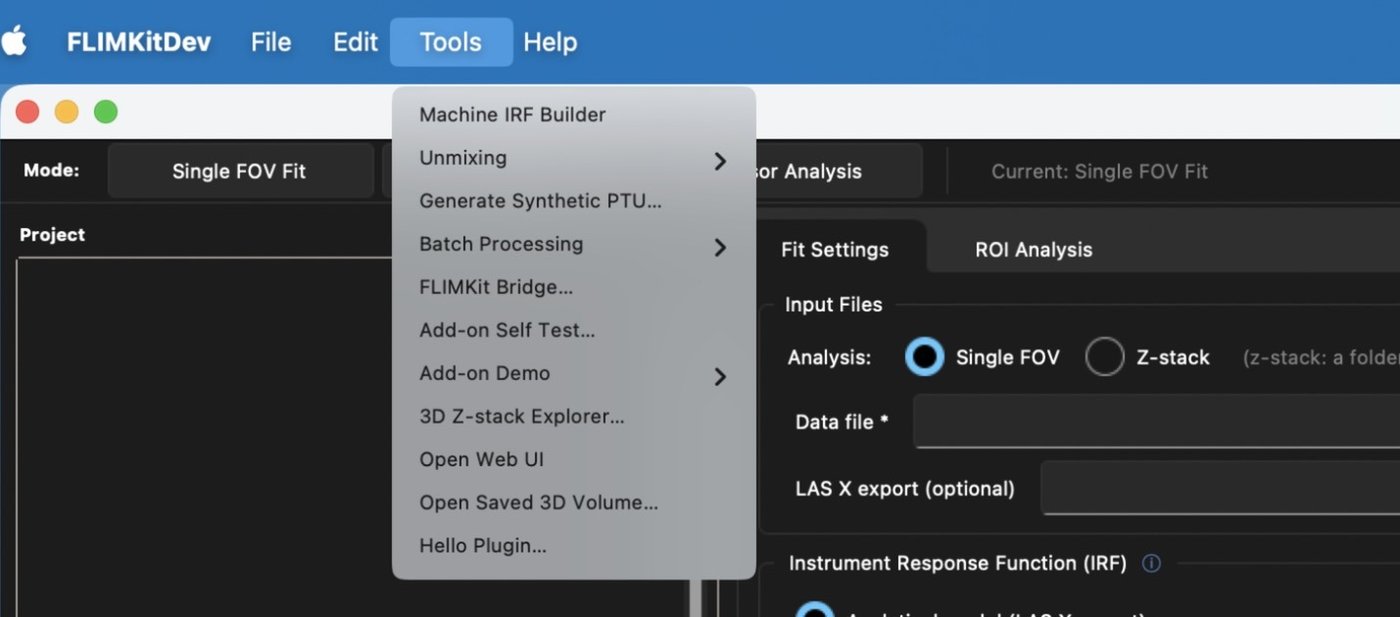
With all of them installed, plus the two examples from examples/plugins/, the Tools menu looks like this. Unmixing, Batch Processing and Add-on Demo are submenus.
Installing add-ons
There are three routes, and which one to use depends on how you run FLIMKit.
- From source or pip:
pip installthe package into the same environment FLIMKit runs from. It declares aflimkit.pluginsentry point and registers on the next start. A package installed into another environment, or with a differentpip, installs cleanly and is never seen. - Compiled app: the app has no
pip, so download the add-on's.whlfrom its releases and drop it into~/.flimkit/plugins/. The wheel has to be pure Python (py3-none-any), and its dependencies have to be ones the app already bundles (numpy,scipy,matplotlib,pandas,tifffile,zarrand tkinter). The z-stack explorer's viewer needs PyVista, which the app does not bundle, so it only works from source. - A single script: put the
.pyfile, or a folder with an__init__.py, in~/.flimkit/plugins/. FLIMKit does not load from that folder until you enable it (below).
QuPath and Fiji need their own half as well, a jar on their side. Their pages say where it goes.
Checking what loaded
Help > Plugins... lists every plugin that loaded, how many things it registered, and anything that failed, with the reason. The checkboxes decide what loads on the next start.
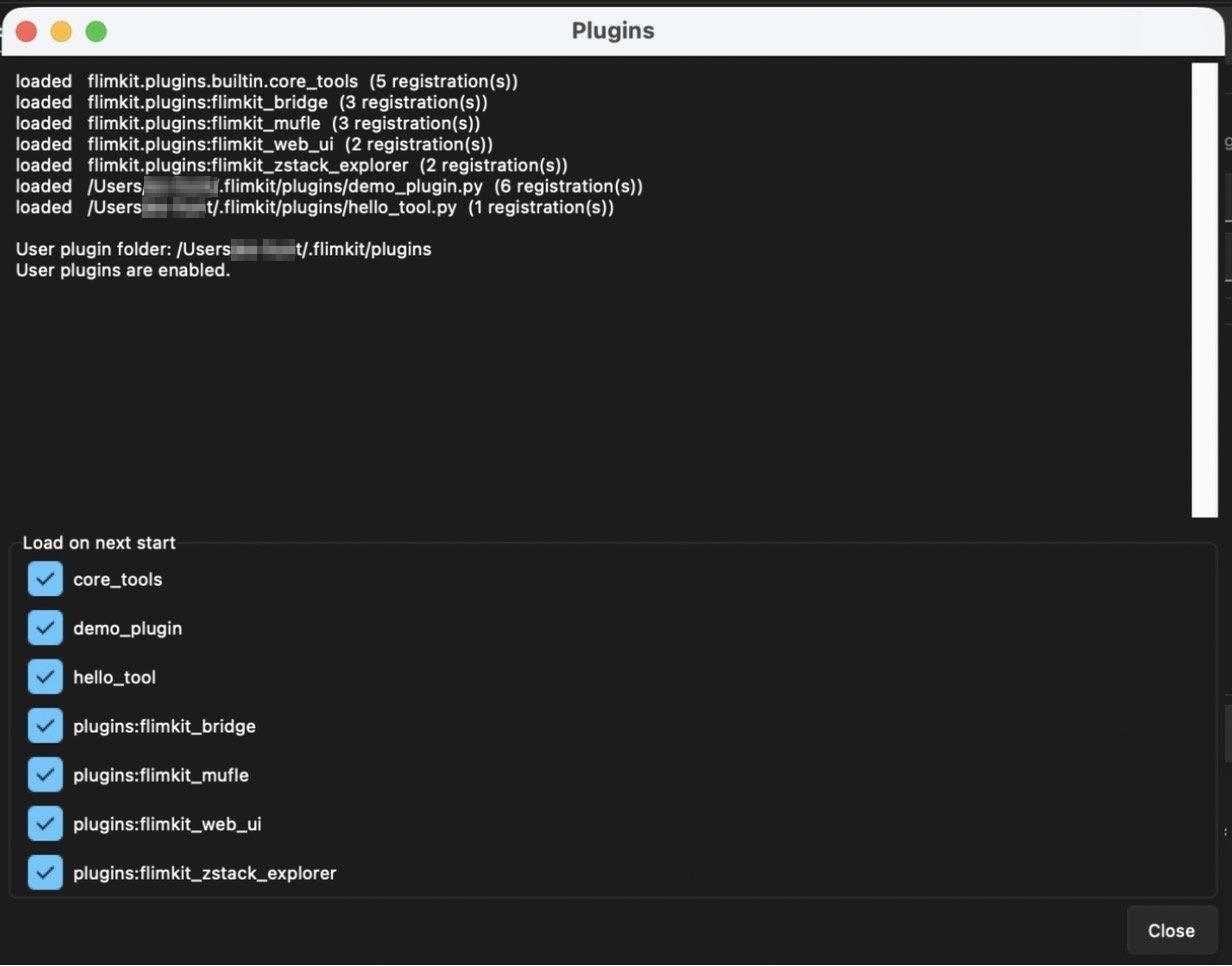
Names starting plugins: came from an installed package's entry point. A path means a file in a plugin folder. core_tools is FLIMKit's own Tools menu.
This window reports import failures. A plugin that imports fine but fails when it starts (a server that cannot get its port, say) is listed as loaded, and the failure is printed in the Progress log instead. See Plugin Troubleshooting.
Plugin preferences
File > Preferences... > Plugins holds the three settings that decide what gets loaded. They take effect on the next start.
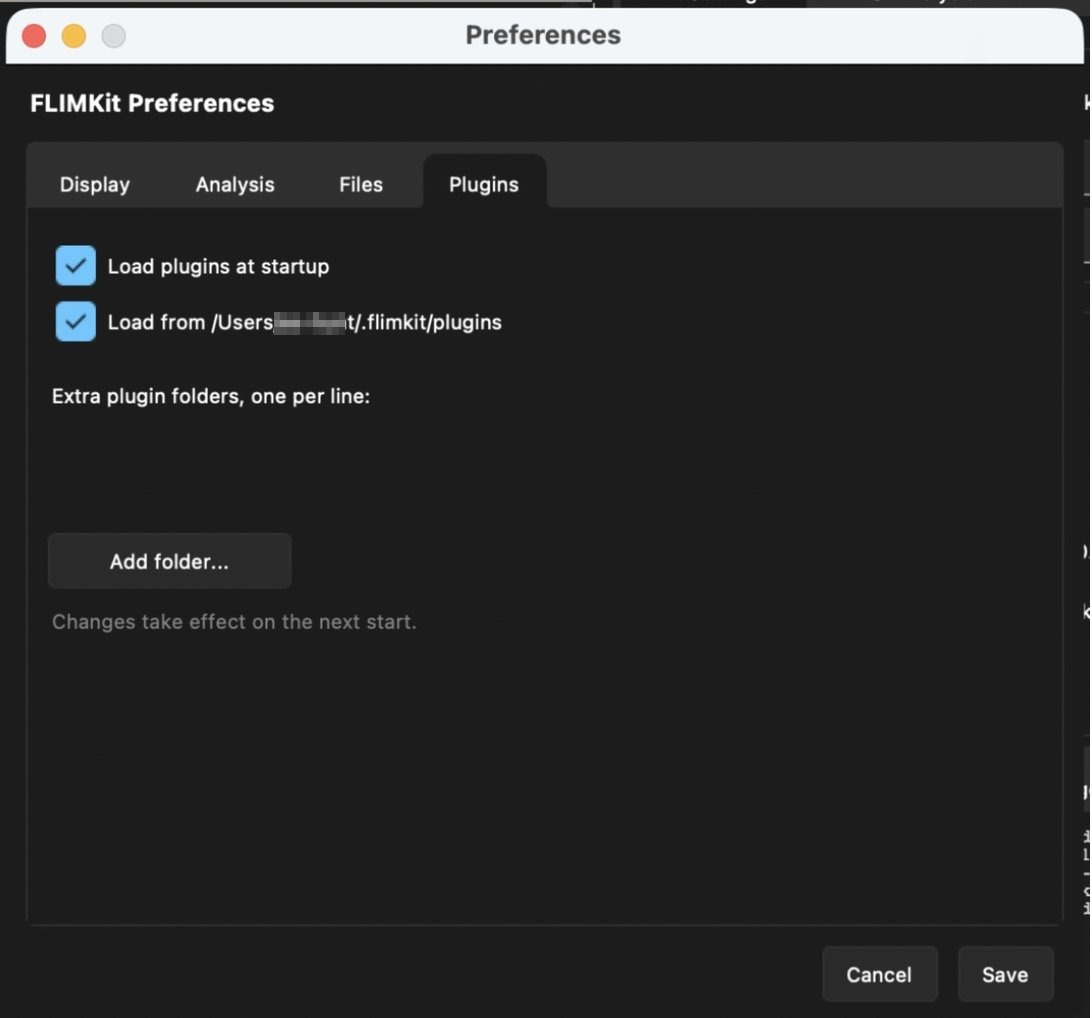
| Setting | Config key | Default | What it does |
|---|---|---|---|
| Load plugins at startup | plugins.enabled |
true |
Off skips everything, built-ins included, the same as --no-plugins |
Load from ~/.flimkit/plugins |
plugins.allow_user_plugins |
false |
The switch for the user folder. If the folder already has files the first time FLIMKit starts, you get asked once |
| Extra plugin folders | plugins.paths |
empty | More folders to scan, loaded without the user-folder switch since adding one is already a deliberate choice |
Loading order is built-ins, then installed packages, then ~/.flimkit/plugins, then FLIMKIT_PLUGIN_PATH, then plugins.paths. Ids have to be unique across all of them and the first registration wins, so a later plugin cannot take over an earlier one's menu entry.
Turning one off
Untick it in Help > Plugins.... That adds it to plugins.disabled in ~/.flimkit/config.json and it stops loading on the next start. Built-ins can be turned off the same way.
From the command line:
python main.py --no-plugins              # load nothing, built-ins included
python main.py --plugins /path/to/dir    # extra folder, repeatable
--no-plugins is the same switch as FLIMKIT_NO_PLUGINS=1, which gives a reproducible baseline for a published analysis.
Trust
A plugin is ordinary Python. It runs inside FLIMKit with your account's access to your files and your network, and there is no sandbox between the two. The trust decision is the same one you make installing a Fiji plugin or a pytest plugin: read it, or get it from someone you would trust with the machine.